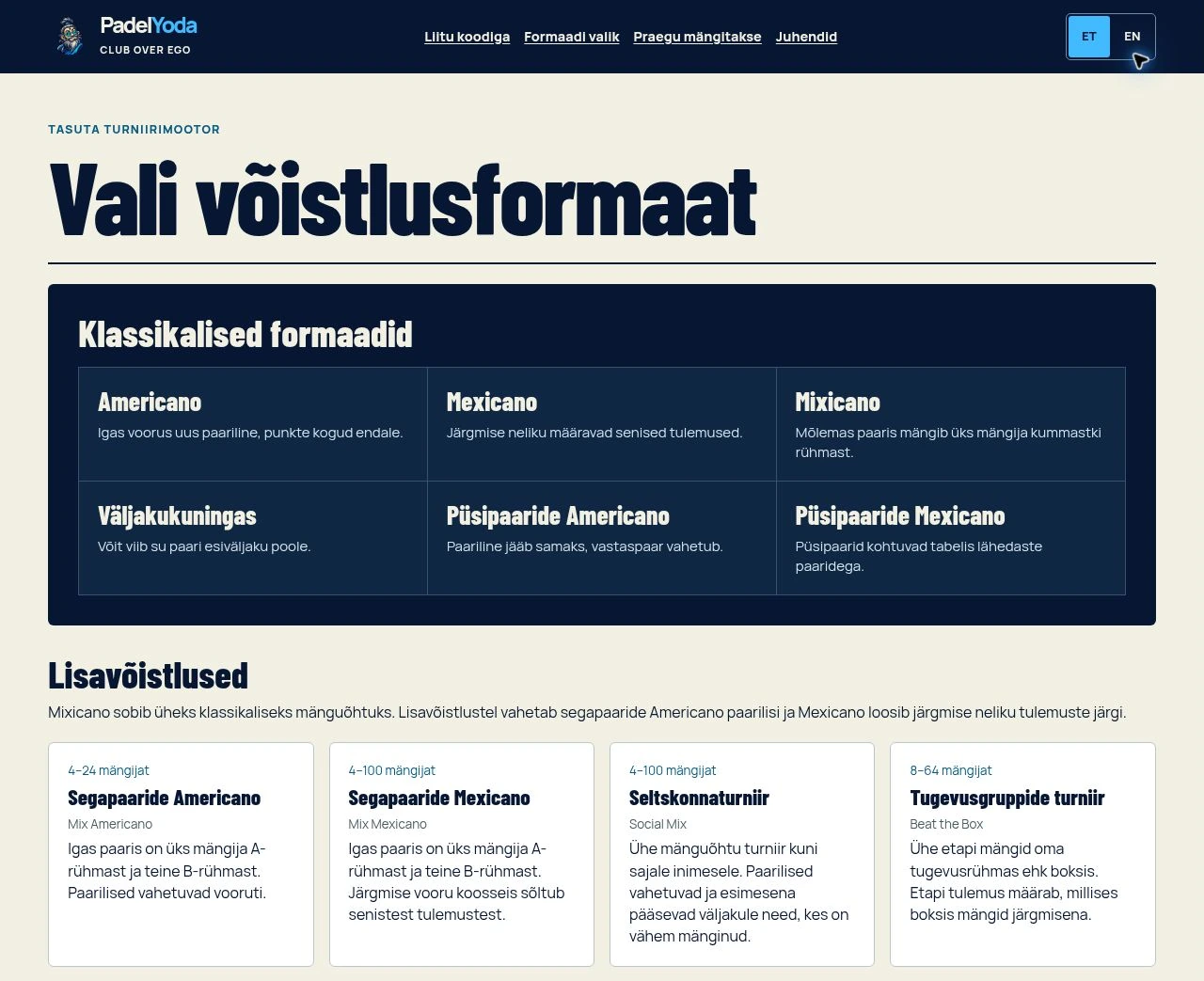
First decide whether partners should stay together. Choose Americano for a social evening where people want to meet different partners. Choose a fixed-pair format for partners preparing to compete together. For a group meeting over several weeks, try a challenge ladder or a points-based league. Select a format’s name in the tables to open its setup.
Classic round-based tournaments| Format | What changes next round? |
|---|
| Americano | The draw prioritises a new partner, then opponents you have met less often. Four players can each partner everyone else once in three rounds. |
|---|
| Mexicano | From round two, the engine groups players near one another in the standings. It may exchange players between neighbouring courts to reduce repeat partnerships. A win alone cannot tell you who you will face. |
|---|
| Mixicano | The organiser assigns each player to group A or B. Each pair contains one player from each group. To fill three courts at once, you need six players from each group. |
|---|
| King of the Court | The winning pair moves towards the top court and the losing pair towards the bottom. On the outer courts, the win-streak limit and the waiting queue can affect the next assignment. |
|---|
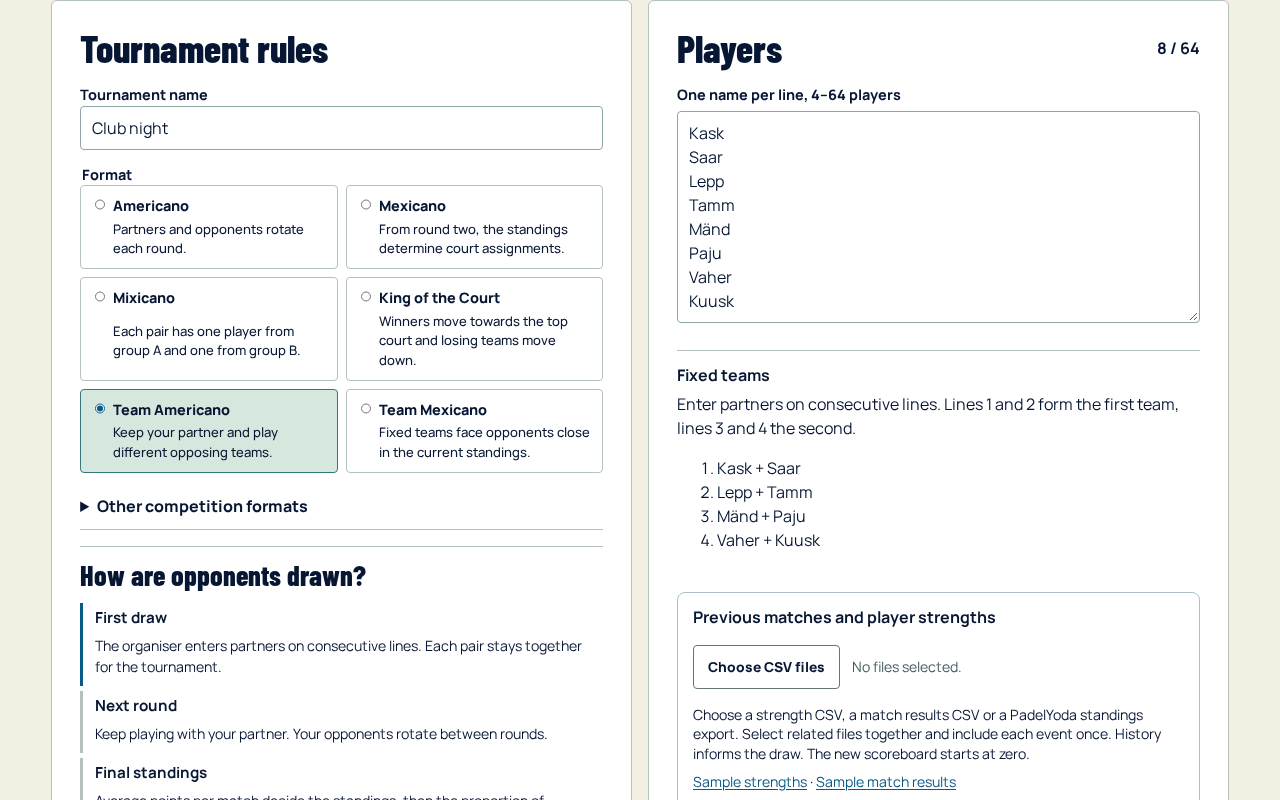
| Team Americano | Keep your partner throughout. The draw favours opposing pairs your team has yet to meet. |
|---|
| Team Mexicano | Keep your partner throughout. After the opening round, your team’s results help the draw find an opponent nearby in the standings. |
|---|
Rotations and boxes| Format | When to choose it |
|---|
| Mix Americano | Partners rotate, with one player from group A and one from group B on each side. |
|---|
| Mix Mexicano | Each pair combines an A player with a B player. Today’s results help decide who meets next. |
|---|
| Social Mix | A one-off social tournament for up to 100 players. Partners rotate and those with fewer games get priority. |
|---|
| Beat the Box | Play a block of games within a group, called a box. Results in that block determine who moves between boxes. |
|---|
Fixed pairs and cups| Format | When to choose it |
|---|
| Round Robin | A full round robin for fixed doubles pairs. Each pair faces every other pair once. |
|---|
| Club Clash | Two clubs meet head-to-head. Every win by a fixed doubles pair counts towards its club’s result. |
|---|
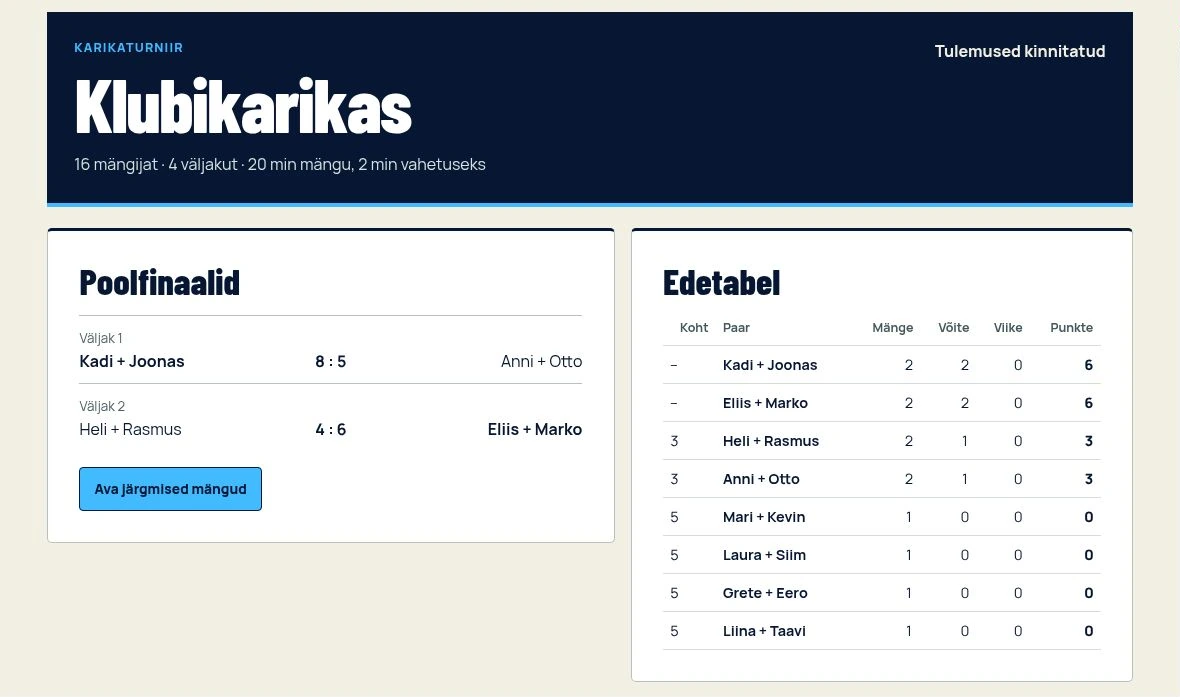
| Knockout | A single-elimination cup for fixed pairs. The winners advance and the losing pair leaves the draw. |
|---|
| World Cup | A group stage followed by a knockout draw. Each pair plays several opponents before elimination starts. |
|---|
Across a season| Format | When to choose it |
|---|
| Ladder Tournament | A challenge ladder for a club or a group of friends. To climb, challenge someone above you. |
|---|
| League | A season table that carries across matchdays. Play as individuals or keep the same doubles partner for the season. |
|---|
Want to set the qualifying rules yourself?
Choose a qualifying round robin or group stage, decide how many pairs advance and finish with a knockout draw.
Tournament Builder
How do I enter teams?
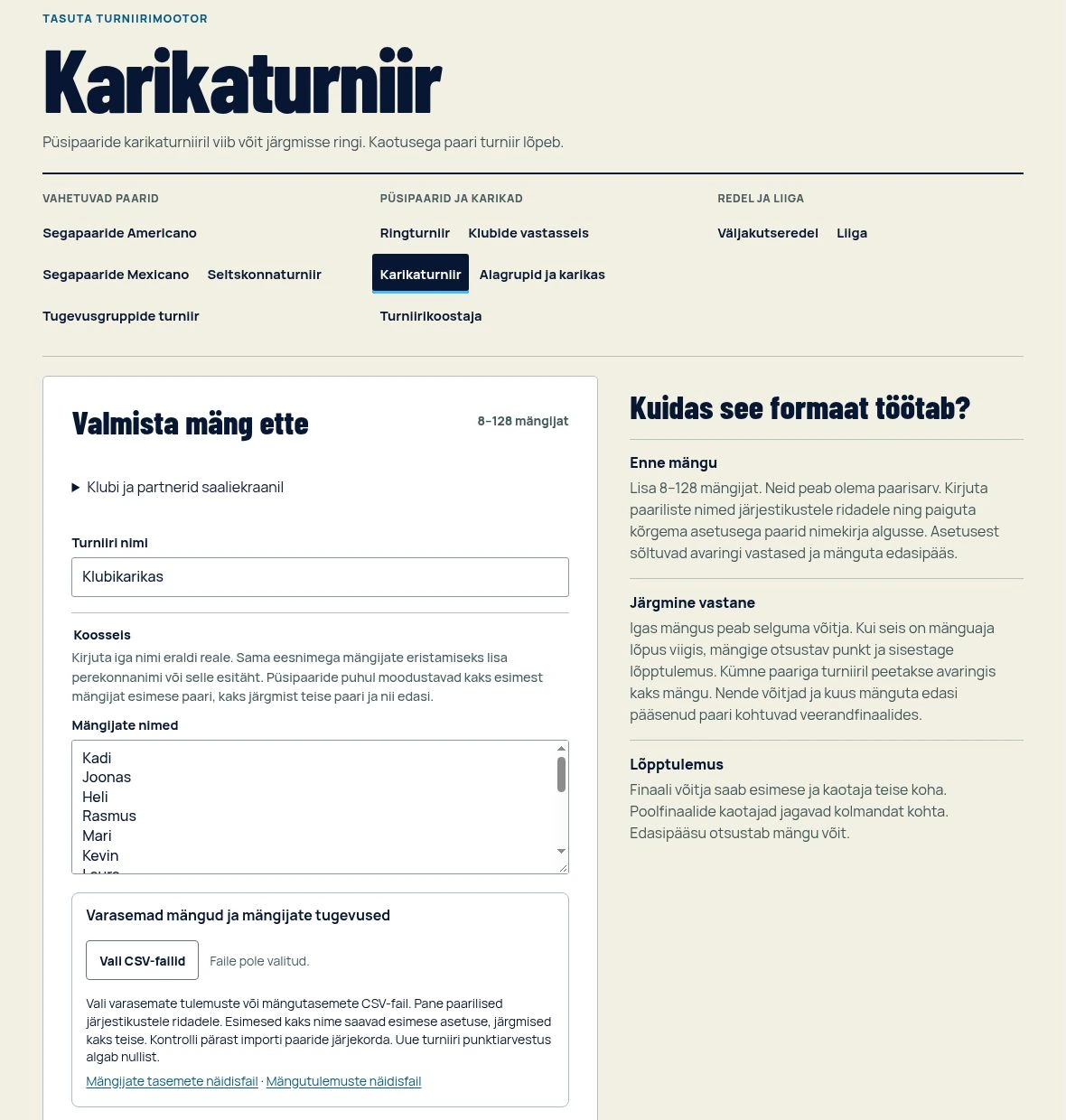
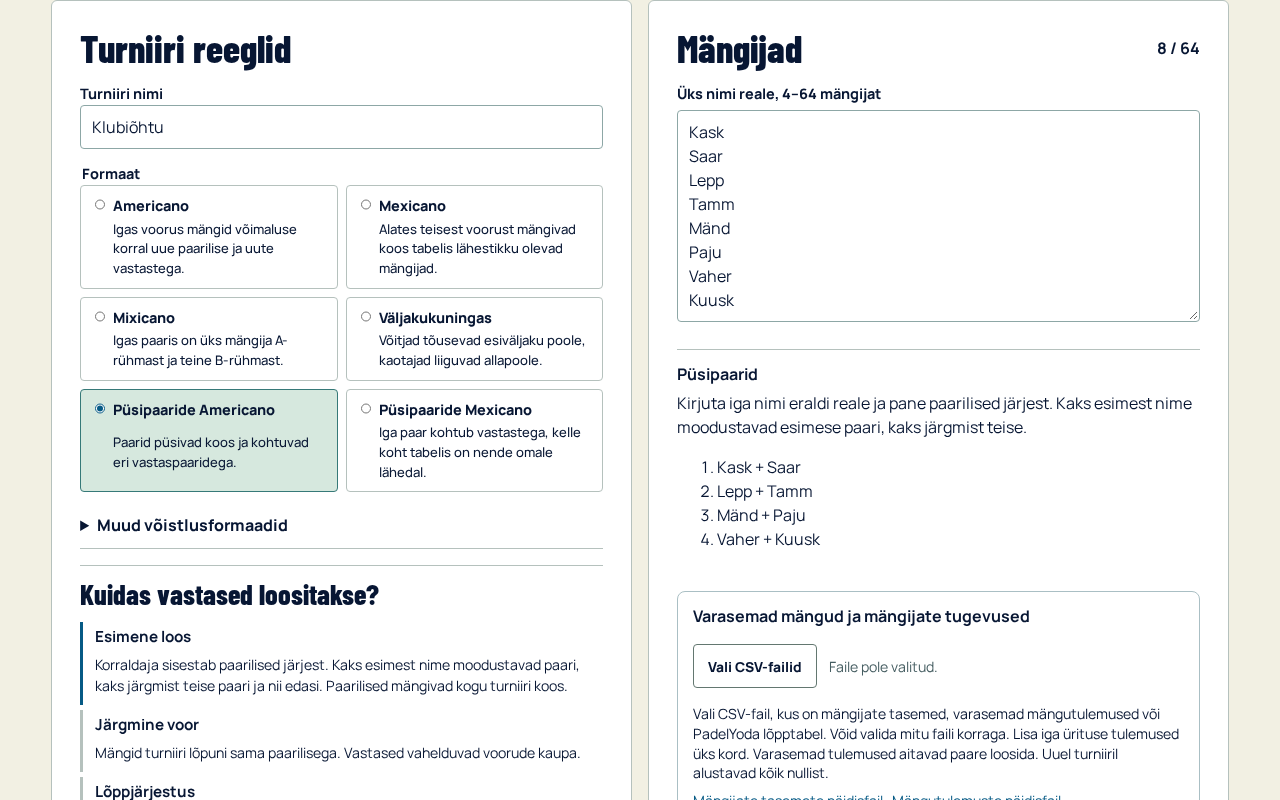
For Team Americano and Team Mexicano, enter one player per line and list partners consecutively. Lines 1 and 2 make the first pair, lines 3 and 4 the next. Check that everyone has a partner before creating the tournament.
What informed the draw rules?
Partner rotation was compared with SCUD’s Americano rules, the distribution of partners and opponents with research on tournament schedules, and the use of match history with Tournicano. The 2.0 comparison covered 320 simulated tournaments across eight setups, 20 random seeds per setup and two engine versions. Test rounds lasted 12 minutes with 24 points shared per match. The engine guide below includes the setups, results and sources. The newer competition formats also draw on Padel Fast’s public catalogue. Each PadelYoda format sets out its own scoring, box movement or challenge rules.
↑ Back to contentsHow do I plan a session?
Four beginners, one court
Choose “Start with four”, enter the four names and agree what you will count. One point per rally won is an easy place to start. Three 20-minute rounds with two 2-minute changes need 64 minutes.
12 players, 90 minutes
Open a regular game group and choose the 12-player, three-court preset. Enter the names, set the date and start time, and check the courts. Scheduling four rounds lets you send everyone the plan before the session. Select “Save game and open invitation”.
A larger tournament
Open the tournament engine and name the event. Choose the format, courts booked, round count, playing time and changeover time. Add the players and check the workload preview to see how many play or rest. Select “Create tournament” when the numbers fit. For a larger one-off social, choose Social Mix. The regular Games with friends session holds up to 12 players.
Example with four full courts| Players | Each round | Equal playing time |
|---|
| 32 | 16 playing, 16 resting | Two rounds provide enough places for one match per player. |
|---|
| 64 | 16 playing, 48 resting | Four rounds provide enough places for one match per player. |
|---|
When you select a venue, use the name or number on your booking for each playing court. If the label is missing from the suggestions, you can type it yourself. Allow time outside the rounds for the warm-up and any late arrivals. Check the workload again if your player count changes.
↑ Back to contentsHow do I add players and import results?
- Make today’s roster. Enter one player per line. Give people who share a name a distinct identifier, such as a surname initial, and use that same spelling in next week’s file.
- Choose a file. Find “Previous matches and player strengths” in the setup form. A strength CSV describes player history and can include a Playtomic level. A match results CSV has the four players and both pairs’ scores for each game. You can also use a PadelYoda standings CSV.
- Review the preview. Select related files together. Open “Review imported players”, check the names and win, draw and loss counts, then choose “Use these numbers”. To fill the tournament roster, select “Add names from file to roster”. Remove anyone missing today.
Include a past event once. If you have both its match results and its final standings, use one of those files. The history informs today’s draw. Today’s scores start at zero.
If a file fails to import
Download a sample below. Keep its header row and column order, and save the spreadsheet as CSV. To resume a saved tournament from a JSON backup, use “Open backup”.
↑ Back to contentsHow do I join a game?
For players
- Scan the organiser’s QR code with your phone camera. If you have a short code, open padelyoda.ee/liitu/ and enter the eight-character code.
- Check the event name and choose your name from the player list. You can join as a guest. If your name is missing, ask the organiser to check the roster.
- Use your phone to find your partner, opponents and court. If the draw is still pending, open the same invitation again after the round has been drawn.
If your name is taken
Reopen the invitation in the browser where you first chose your name. If you changed phones, use your saved personal link. While the game is open, the organiser can release your place so you can choose it again on the new phone. Players who joined before the game finished can still view their results.
For organisers
Enter the players before sharing the invitation. For a classic round-based tournament, choose “Share tournament”, then “Open tournament room”. In other formats, go to “Sharing and visibility” and open “Sharing links”. For a game day with friends, open “Player invitation”. In each case, select “Show join code”. Display the QR code and short code at the venue or send the shared link to the group chat. The same invitation works throughout a tournament or a single game day with friends.
Which code goes on the wall?
Put the shared join code on the wall. Use the court’s scoring code where the pairs enter their score. Share a personal link only with the named player and keep the organiser link with the people running the game. You can keep public standings hidden while players use the shared invitation.
↑ Back to contentsHow do I run a round?
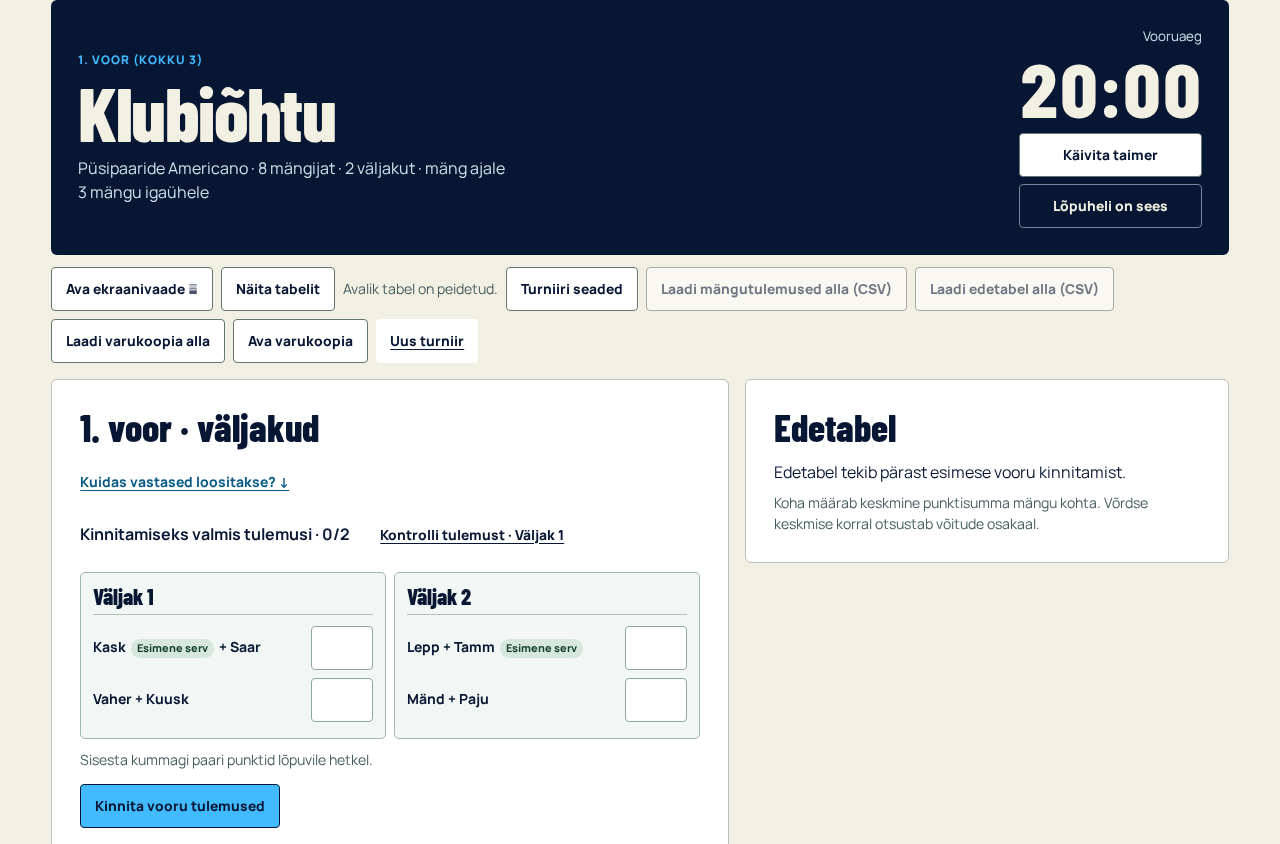
- Before the opening round. Check attendance, court names and the scoring rule. Choose “Start first round”. Start the timer when players are ready on court.
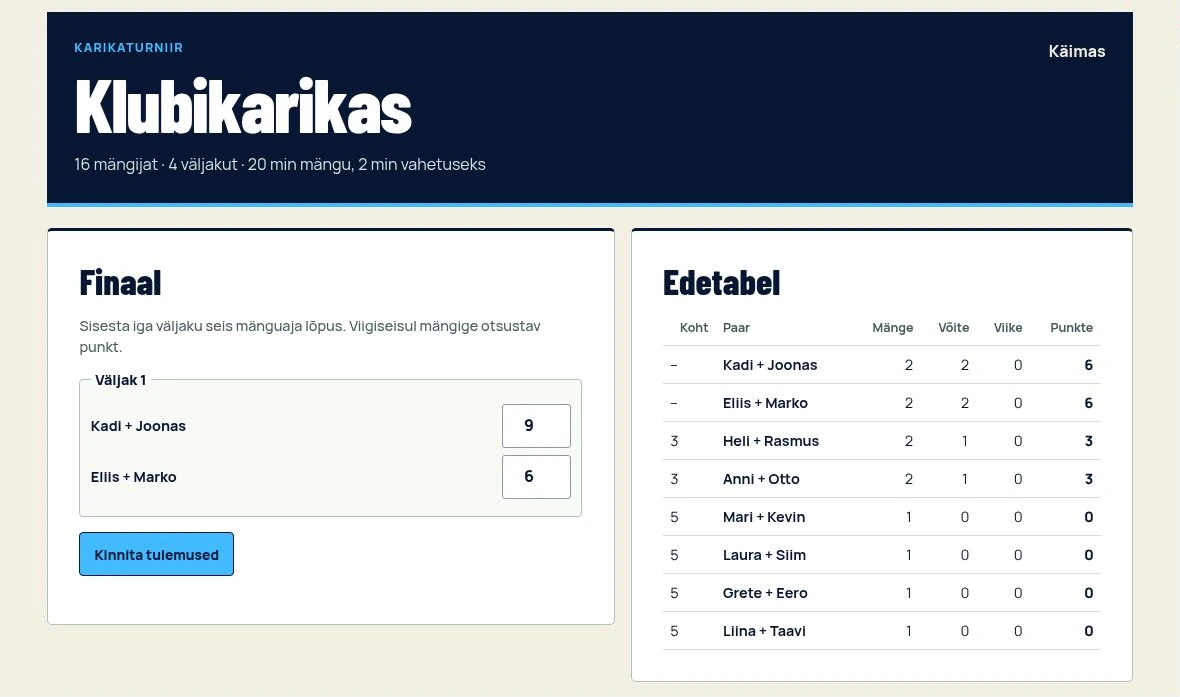
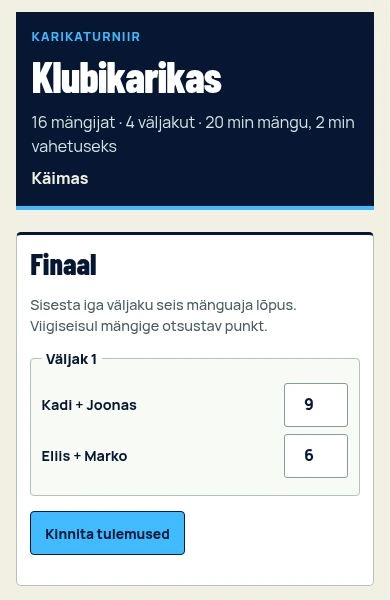
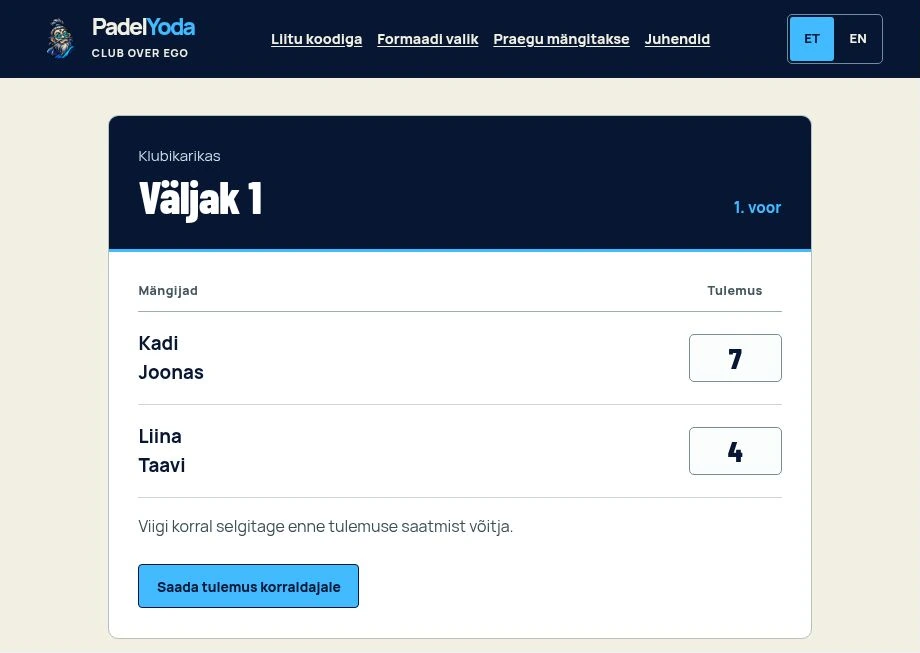
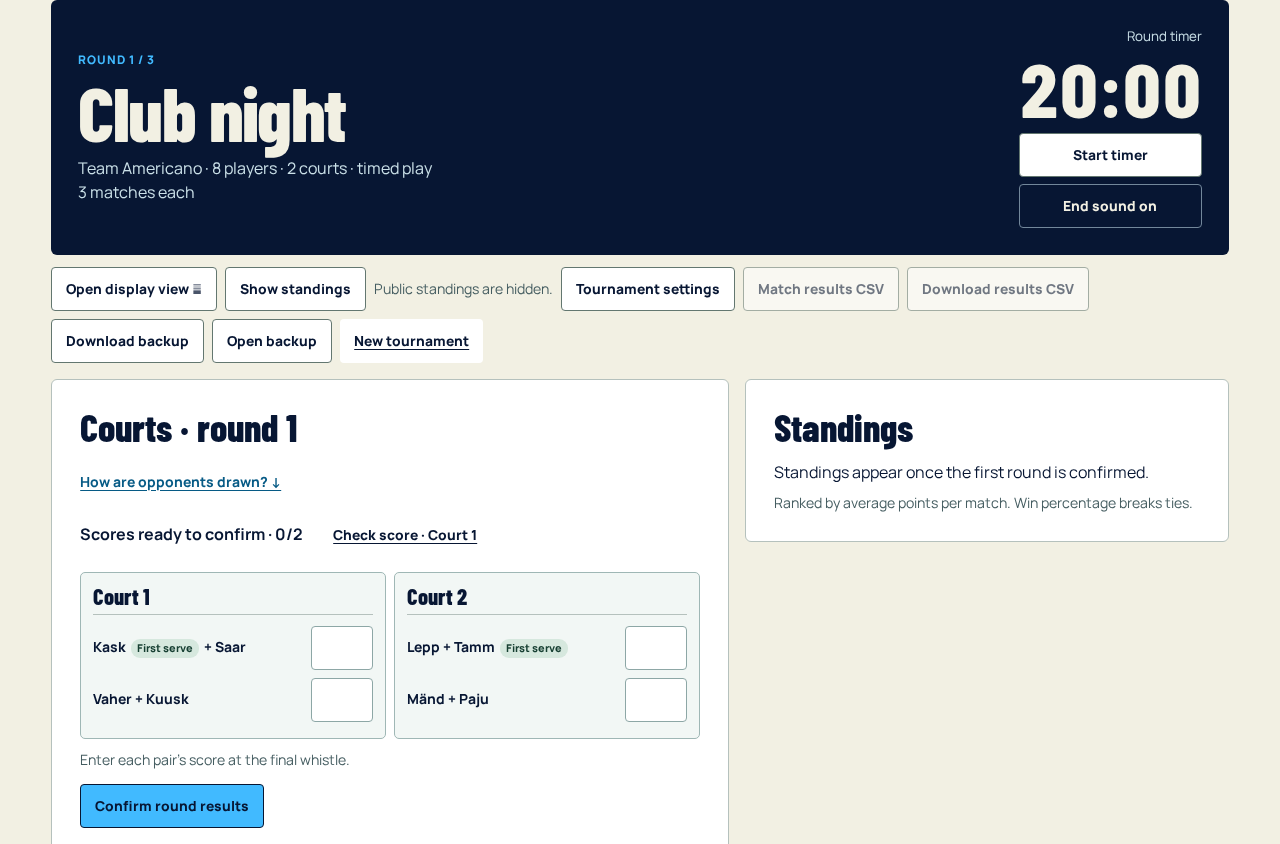
- At the whistle. In a timed round record the actual score. If you count games and finish at 5–4, enter 5 and 4. A 5–5 draw is valid when draws are enabled. A specific combined score is required only if you selected fixed-point scoring.
- Before the next draw. In a shared room, select “Use score” to copy each court’s submission into the round form, or enter the numbers yourself. Check both sides on every court. Select “Confirm round results” and then “Start next round”.
- After the final game. Confirm the last round and choose “Finish tournament”. Download the results as CSV. To resume a saved tournament on another device, use its backup.
Example · a game night starting at 18:00| Round | Playing time | Changeover |
|---|
| 1 | 18:00–18:20 | 18:20–18:22 |
|---|
| 2 | 18:22–18:42 | 18:42–18:44 |
|---|
| 3 | 18:44–19:04 | 19:04–19:06 |
|---|
| 4 | 19:06–19:26 | Session ends |
|---|
The timetable uses 86 minutes of a 90-minute booking, leaving four minutes spare. If you want a ten-minute warm-up, shorten the rounds or reduce the round count before sending the invitation.
A knockout match may need a deciding point after the whistle. A group round or league matchday can also need several court waves. Include all of them when booking the courts.
↑ Back to contentsWhat can I see as a player?
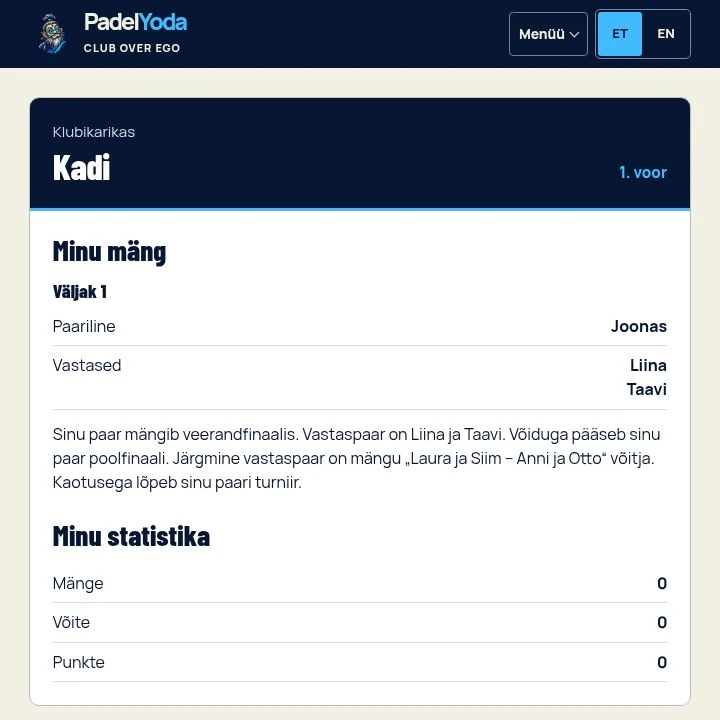
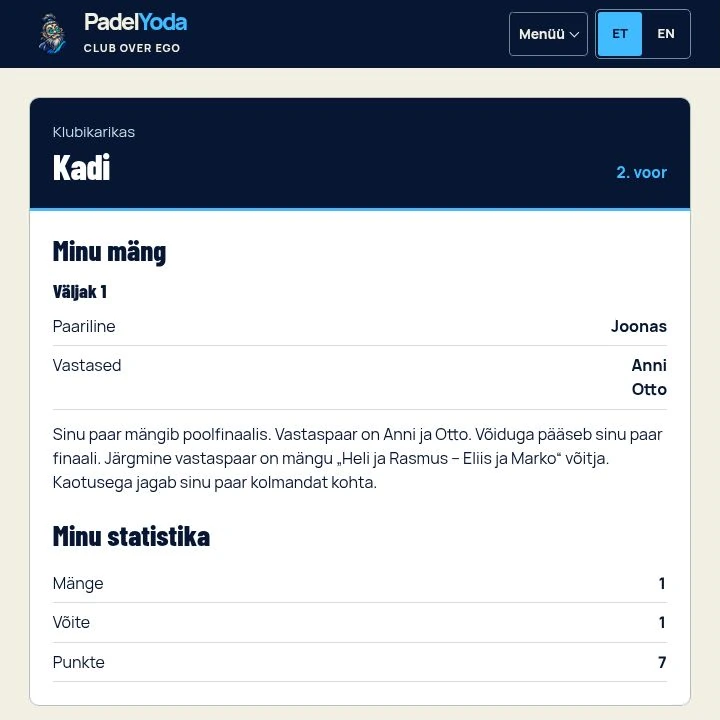
Open the personal link from your organiser. Once the draw is ready, you can see your court, partner and opponents. If you have a rest round, check the same link when the organiser makes the next draw.
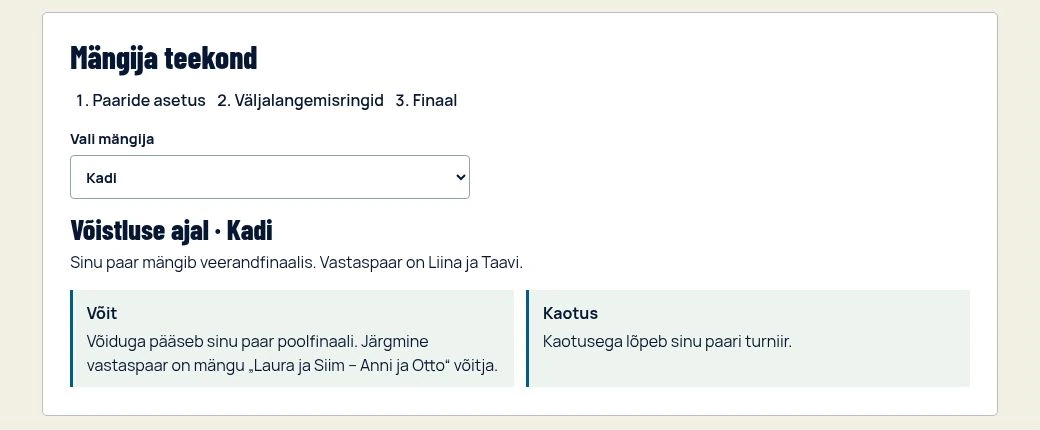
Where will I go if I win or lose?
King of the Court. For example, with four full courts the winning pair on court two moves to court one and the losing pair to court three. The exact opponents also depend on another court’s result. Your view can show possible paths when everyone is playing and attendance is unchanged. If players are waiting or the roster changes, look for the confirmed draw.
Mexicano. If you win 13–11 and the other court finishes 18–6, the winners earn 13 and 18 points respectively. Once the organiser confirms all courts and draws the next round, you see your court and opponents. In Americano, the draw looks for a new partner whether you won or lost.
Why didn’t a rest round lower my average?
In a classic Americano or Mexicano, points per match determine rank, followed by win rate. In the overall standings for Social Mix, Mix Americano, Mix Mexicano and Beat the Box, equal points per match are settled first by average point difference, then by win rate. Scores of 16 and 12 give an average of 14, even after a rest round. Players whose figures are still equal share the place. Your personal statistics remain available when the organiser hides the public standings.
↑ Back to contentsWho can find the event and see its scores?
A shared tournament has two separate visibility choices. One controls how spectators find the event. The other controls what appears on the court display.
Visibility controls for organisers| Your aim | What to do |
|---|
| Let spectators find the event | Enable the public Live listing in the shared room. The tournament can be found on the Live page while it is in progress. |
|---|
| Keep the room for invitees | Leave public listing off and share the appropriate links directly. Anyone who has received a link may still pass it on. |
|---|
| Show the schedule and keep the finish a surprise | Keep the public standings hidden. Players can check their own progress through their personal links. |
|---|
| Announce results in the hall | Choose “Show standings” for a tournament or “Show standings on display” for a social game. You can change this during play. |
|---|
Example. To let people find a club tournament while keeping the medal positions a surprise, list it publicly and keep the standings hidden. After the last score is confirmed, finish the tournament and reveal the standings.
↑ Back to contentsHow do I set up the big screen?
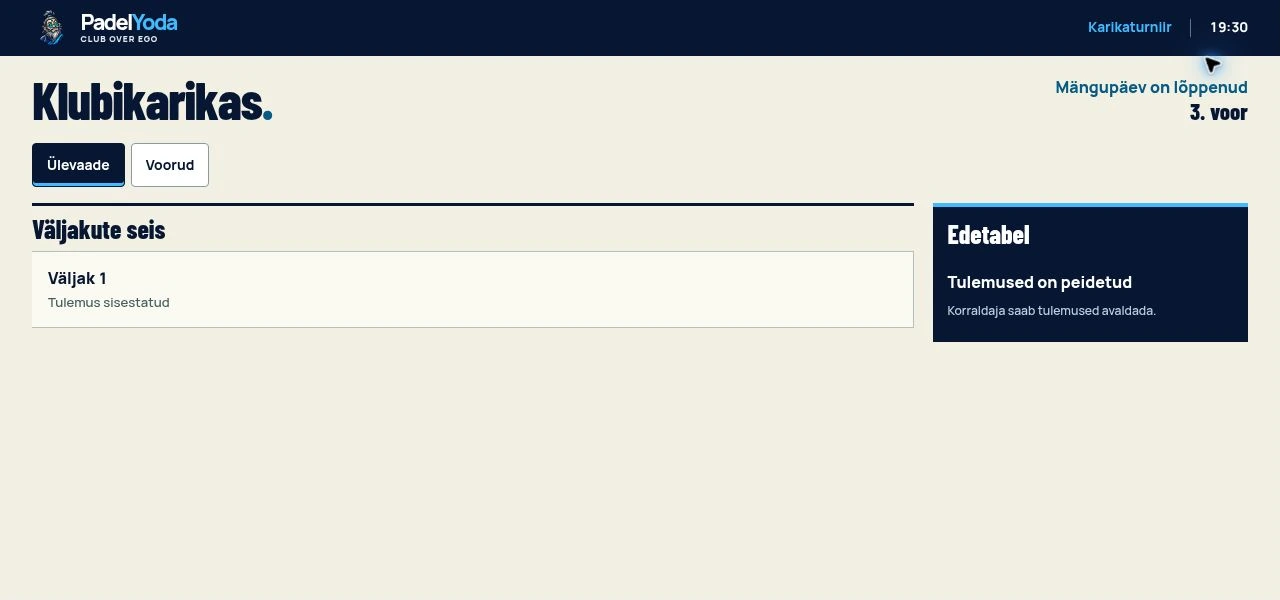
On the computer connected to your display, open the organiser’s “Club TV” link. For a social game day, use the shared public schedule. Switch the browser to full screen and check from across the hall that you can read the courts and pairings.
How do I show the venue and its partners?
Open the venue and partners TV settings when creating the tournament. Enter the venue name and, optionally, up to three partner names separated by commas. Choose an accent colour for the display. The venue and partner names remain visible on the shared TV view while the scores are hidden.
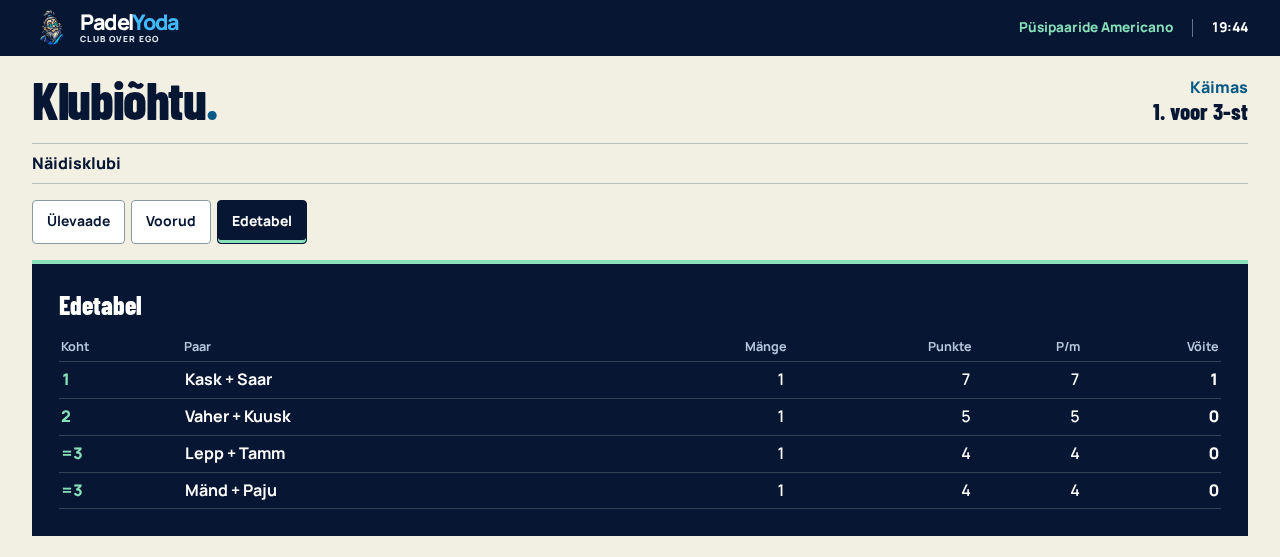
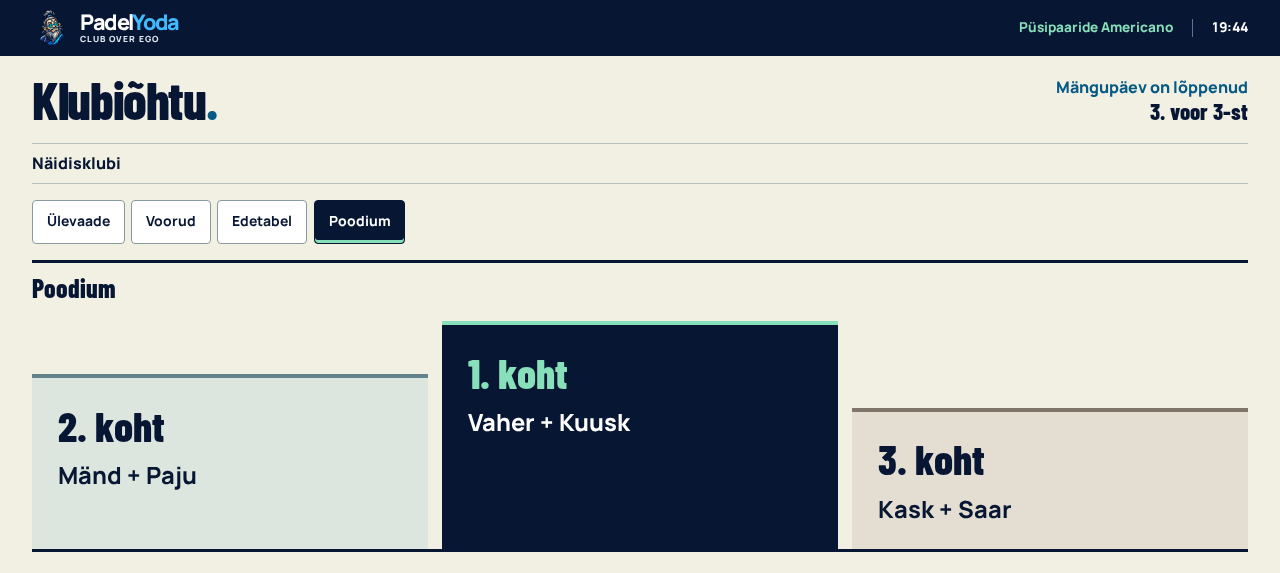
Choose a TV view| View | When to use it |
|---|
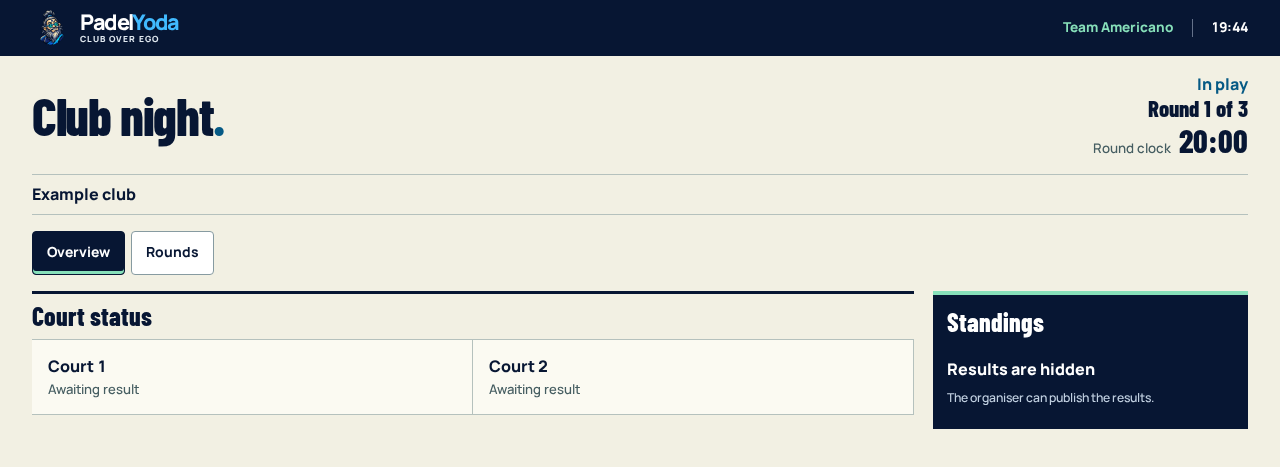
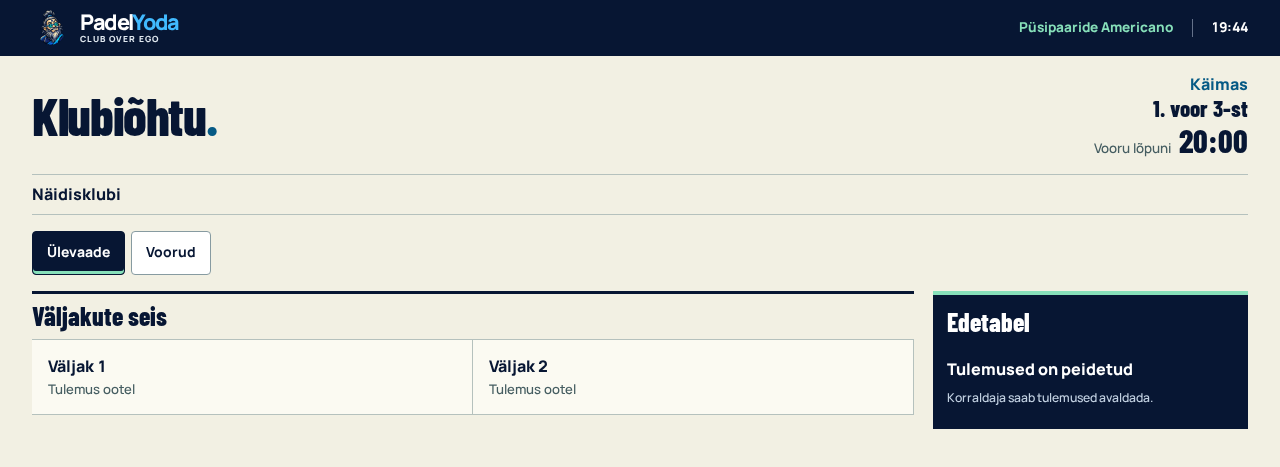
| Overview | During play, to see the round, court status and any results the organiser has revealed. |
|---|
| Rounds | At changeovers, when the priority is finding the round, court, partner and opponents. |
|---|
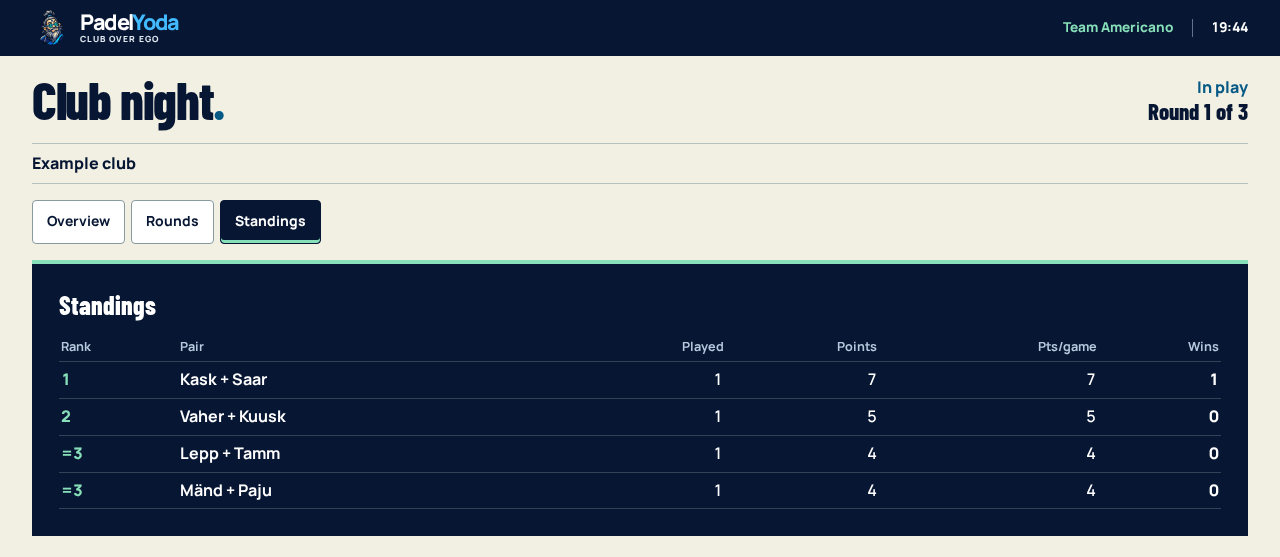
| Standings | Between rounds, to show the published positions. Ranks and points stay off the public display while the standings are hidden. |
|---|
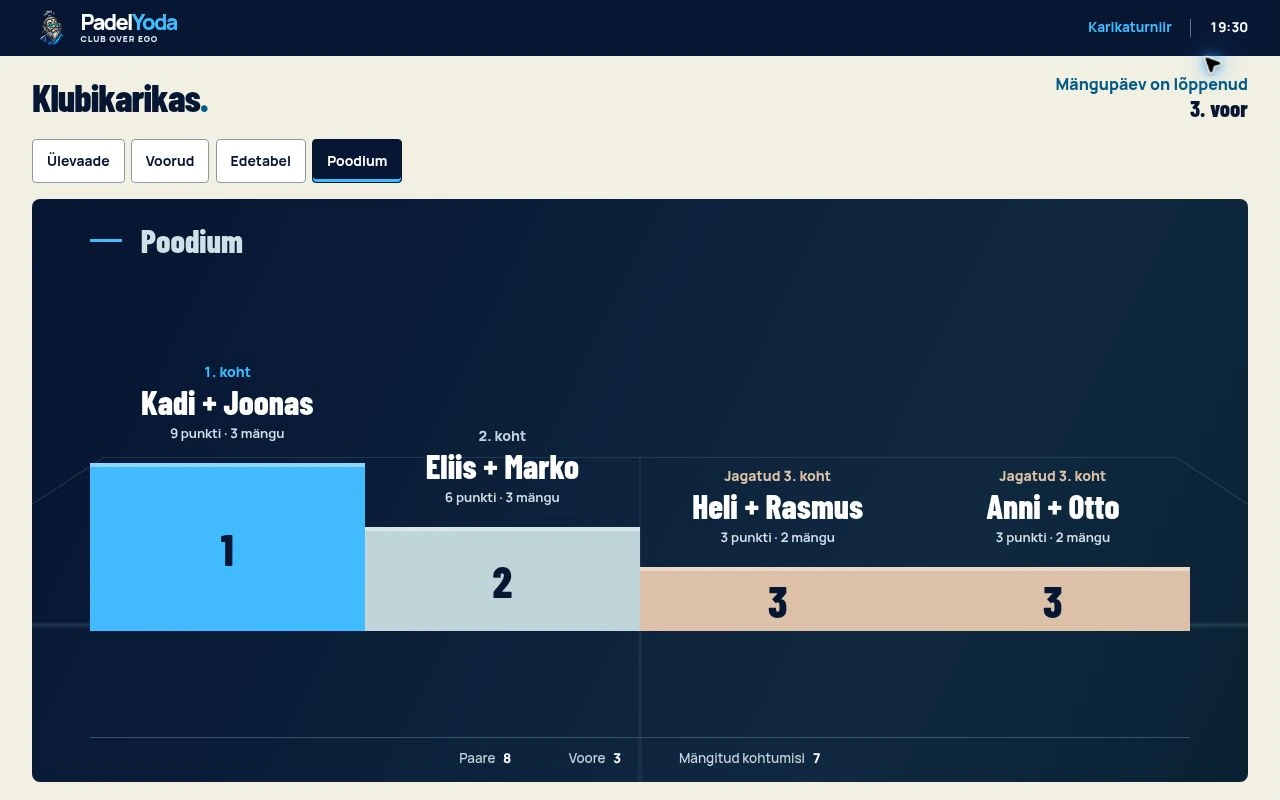
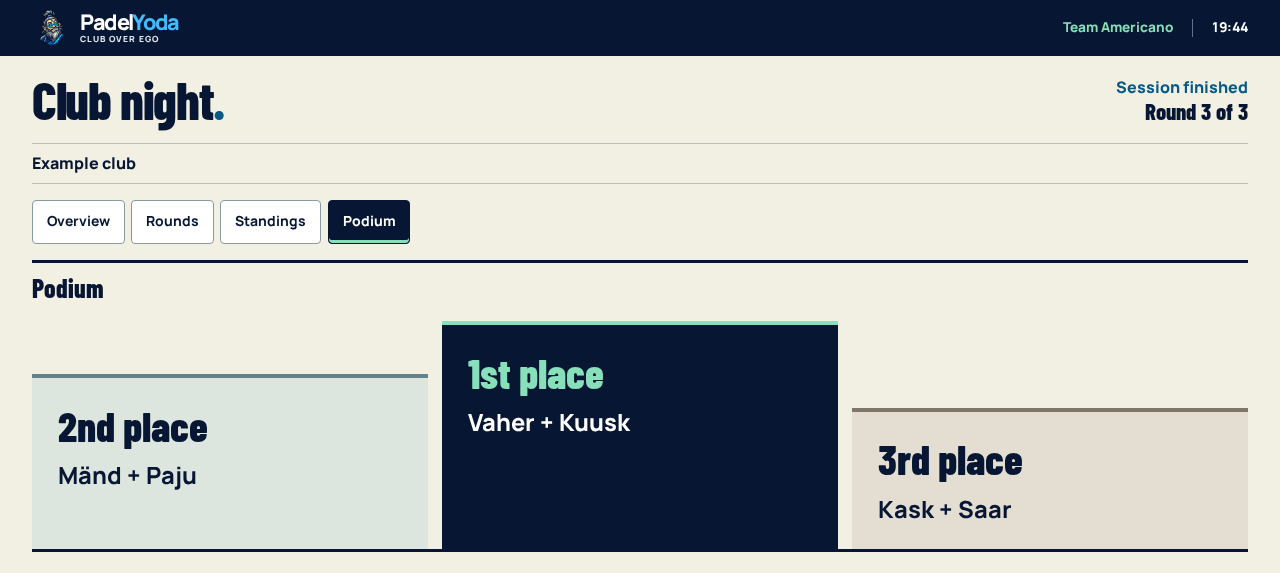
| Podium | At the awards presentation. Finish the event and reveal the results to open the podium. More than one player can share a place. |
|---|
If the display keeps waiting
Before the first draw, players have no court assignments. If the organiser can already see the current round, check that the display has an internet connection and the TV link for the same tournament. Use the court QR code on a phone to enter a score.
↑ Back to contentsIs running a tournament free?
The PadelYoda tournament engine and club organising tools are free for players, organisers and venues. You can read the guides, draw pairs, share invitations, list a live tournament and use the TV views and podium without a subscription.
The venue sets its court hire price. An organiser can also set an entry fee for a particular event. If you’re joining, check the fee with that event’s organiser before registering.
↑ Back to contents